
1. Signing in to the VC Paddock
The VC Paddock is the league's system: results, standings, briefings, protests, broadcasts and your account. It works on computers and phones.
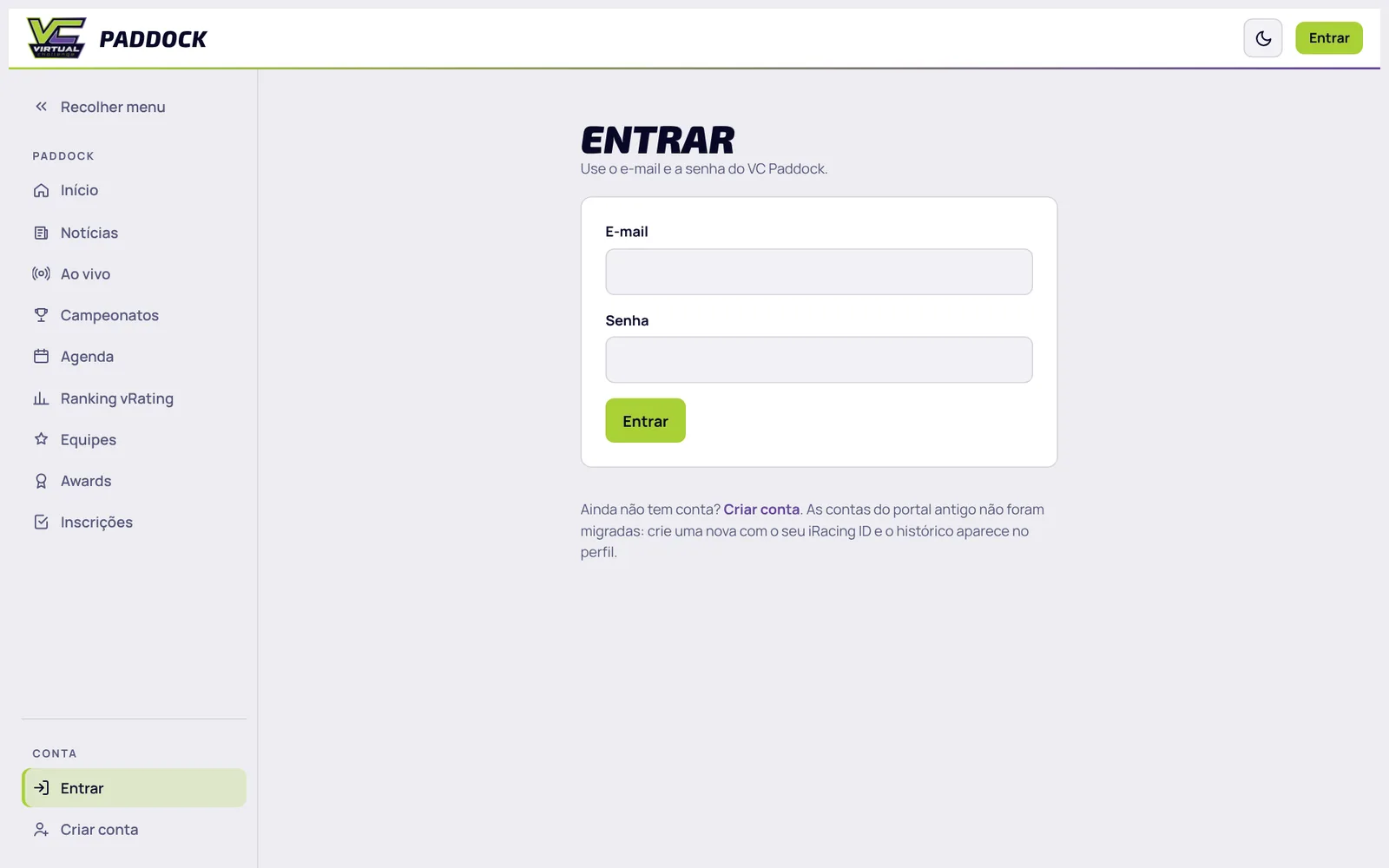
- Open paddock.vcesports.com.br and click Entrar (Sign in, top right).
- Use your account's e-mail and password. No account yet? Click Criar conta (Create account) and enter your iRacing ID: it links your account to your results.
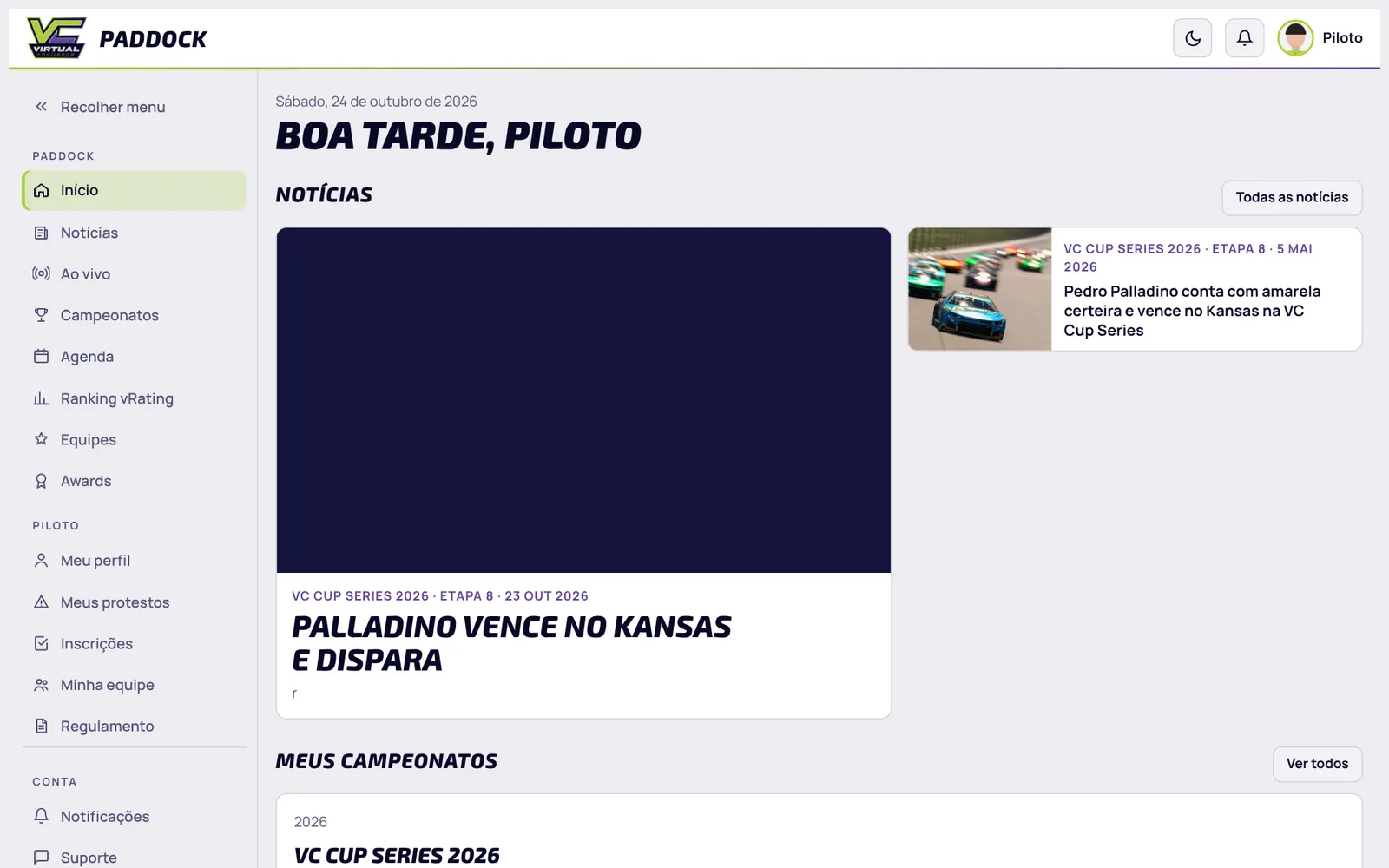
- Once signed in, the left menu shows everything for drivers: Meu perfil (My profile), Meus protestos (My protests), Inscrições (Registration), Minha equipe (My team), Regulamento (Rules), Notificações (Notifications) and Suporte (Support).
2. Setting up and opening your facecam
The facecam puts your camera on the broadcast (in the mosaic, when the iRacing camera is on your car, and in interviews). Each driver has a personal, permanent link.
- Go to Minha conta (My account, in the menu or by clicking your name at the top).
- In the Facecam nas transmissões box, click Abrir facecam (Open facecam).
- On the page that opens, allow camera access, choose the right camera and click Start. The banner at the top turns green: the camera is available to the broadcast.
- Keep that page open during the whole race (it can stay behind iRacing). If you close it, your camera leaves the broadcast.


3. Photo for the broadcast (transparent background)
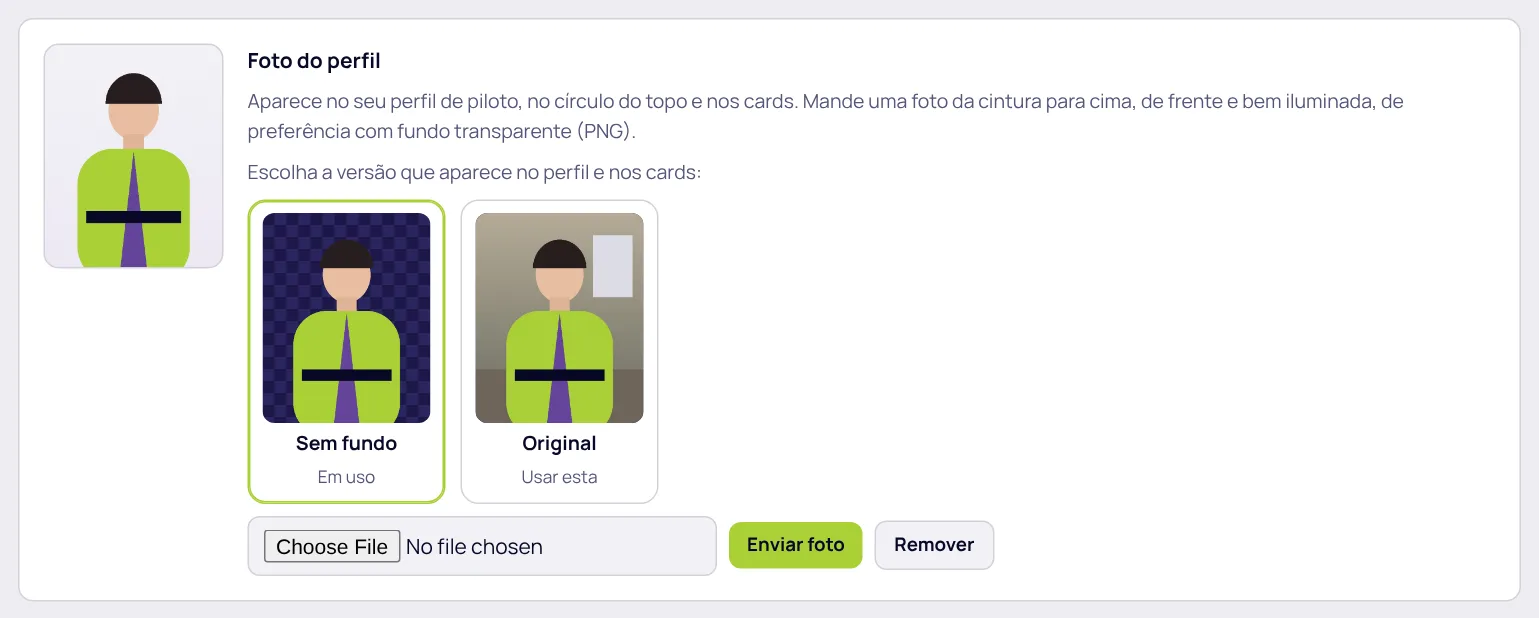
Your profile photo appears on your profile, on the cards, on the starting grid and in the driver highlight on the broadcast. With the background removed, it looks much better on the graphics.
- In Minha conta, in the Foto do perfil (Profile photo) box, choose a waist-up, front-facing, well-lit photo and click Enviar foto (Upload photo).
- The Paddock removes the background by itself in a few seconds (if the photo is already a PNG with a transparent background, it stays as it is).
- Choose which version is shown: Sem fundo (no background, recommended for the broadcast) or Original. You can switch whenever you want.
4. Filing and following a protest
Filing
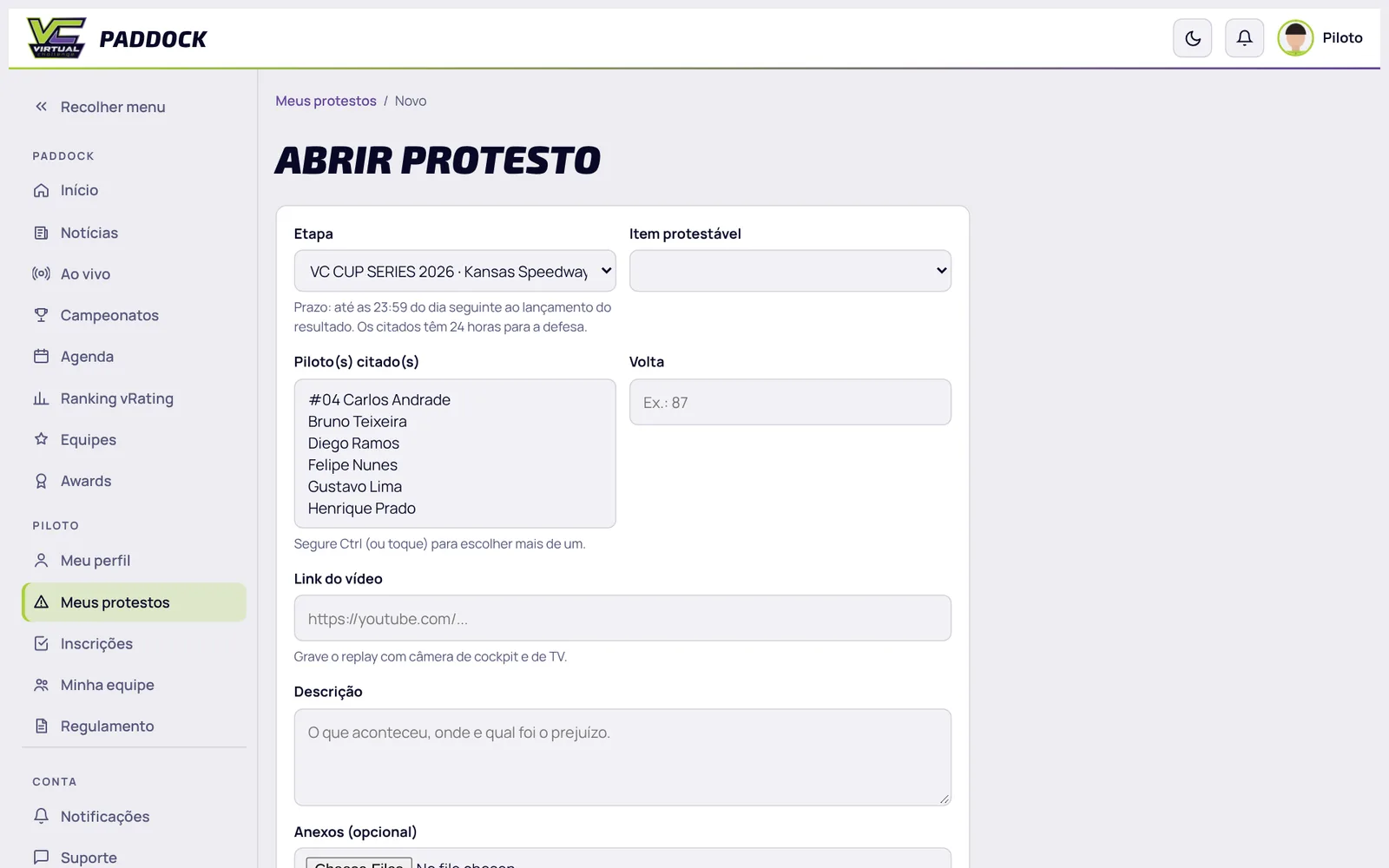
- Open the round (Campeonatos → the championship → the round), Protestos tab, and click Abrir protesto (File protest), or go to Meus protestos → Abrir protesto.
- Choose the round, the protestable item (type of incident), the driver(s) involved and the lap.
- Read the Race Control of this round, shown in the form with the decision and the Race Control analysis of each incident. If the drivers you named are in an incident Race Control has already analyzed, it is highlighted and you must describe the new fact (what Race Control did not see). A protest about an incident already analyzed with no new fact may cost you the right to file new protests in the championship.
- Describe what happened, where, and the damage it caused. If you have one, paste the video link (replay with cockpit and TV cameras); it is optional.
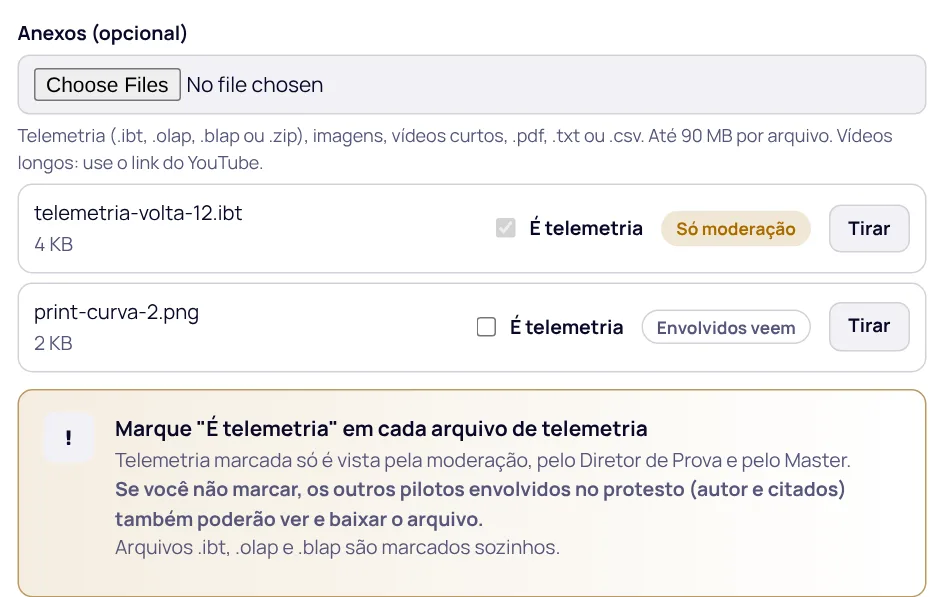
- If you want, attach files (telemetry, images, short videos, .pdf). Tick É telemetria (It is telemetry) on each telemetry file.
- Tick Li o Race Control desta etapa (I read this round's Race Control) and click Enviar protesto (Send protest).
Attachments and telemetry
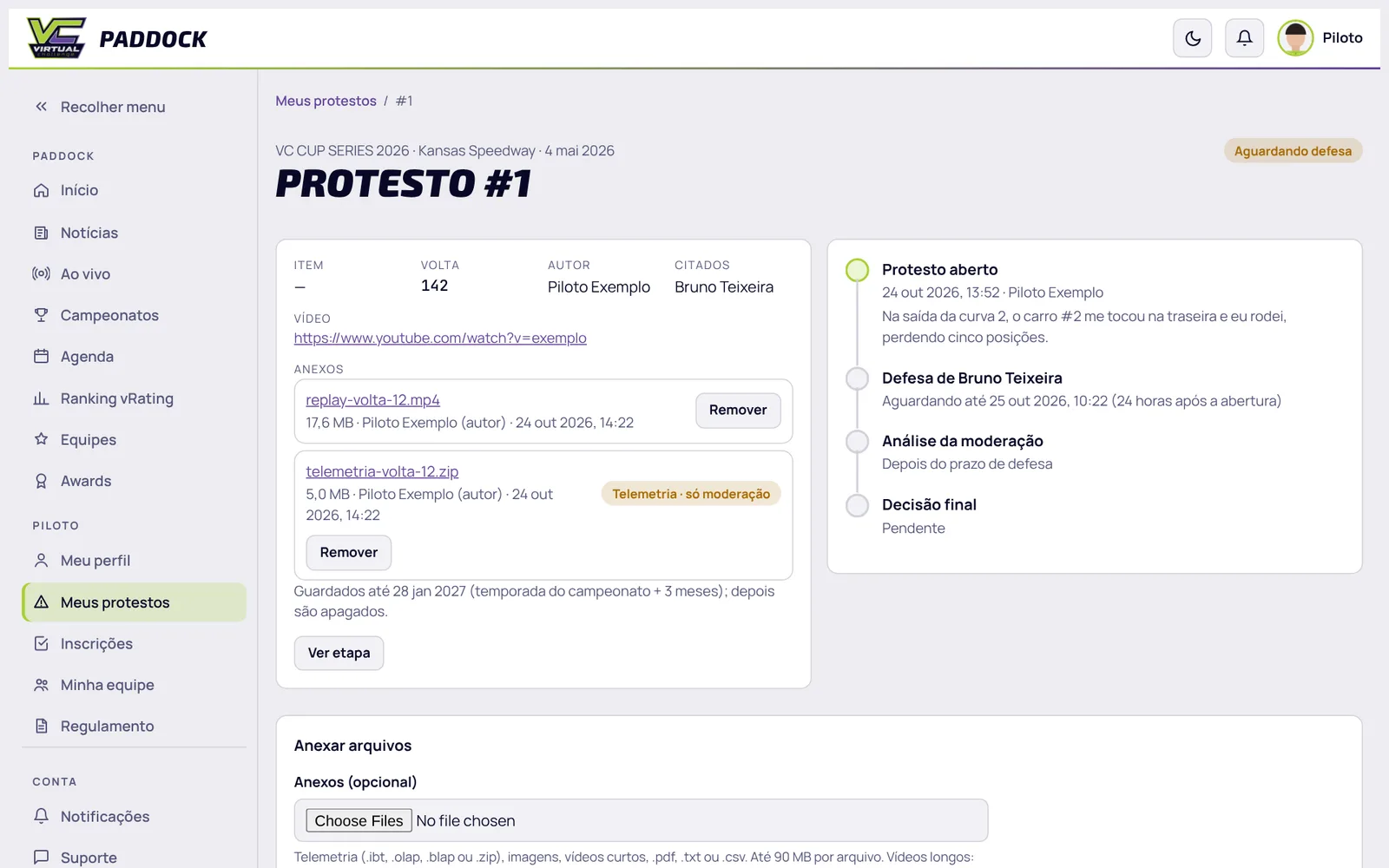
You can attach files when filing the protest and later, on the protest page (Anexar arquivos, Attach files), while it is not closed. Drivers named in the protest can attach files too, along with their defense.
- Accepted: telemetry (.ibt, .olap, .blap or .zip), images, short videos, .pdf, .txt and .csv, up to 90 MB per file. Long videos: use a YouTube link.
- Telemetry marked with É telemetria is only seen by the moderators, the Race Director and the Master. .ibt, .olap and .blap files are marked automatically.
- If you do not mark it, the file is visible to the other drivers involved in the protest (author and named drivers). Check before sending a .zip with telemetry.
- Attachments are kept for the championship season plus 3 months; then they are deleted.
Following
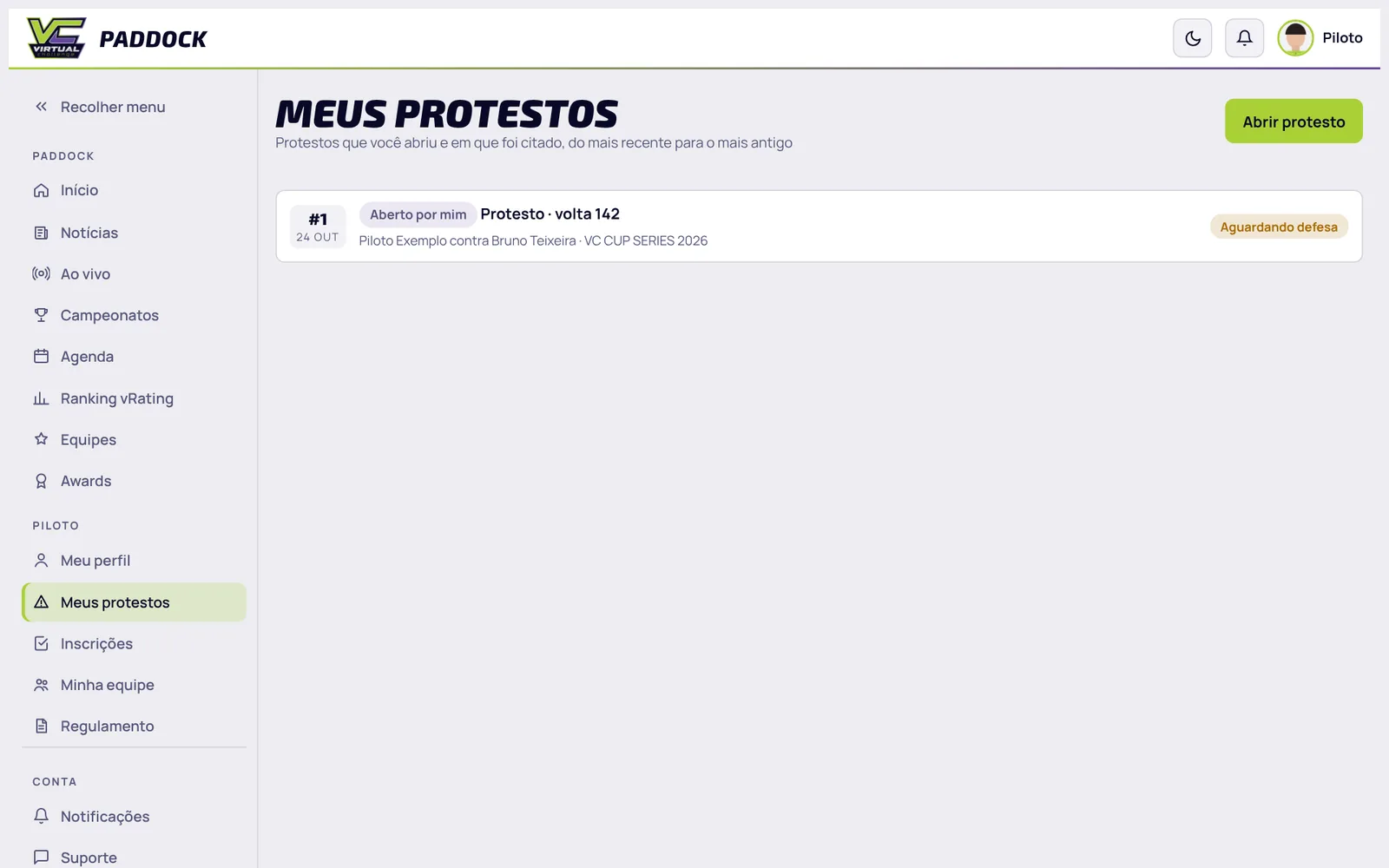
Meus protestos lists the protests you filed and the ones you were named in. Opening one, the timeline shows each stage:
- Protest filed: the named drivers are notified on the bell and by e-mail.
- Defense: each named driver has 24 hours to send a defense.
- Moderation review: the moderators analyze it and give their opinion.
- Final decision: Race Control decides; the penalty (if any) goes straight into the result, the license points and, when applicable, the probation. Author and named drivers are notified.
Drivers are only notified when the protest is filed and when it is closed. The stages in between (defense, attachments, opinions) stay on the protest timeline.
5. Reading the rules
The Regulamento menu has VC's General Rules, the Simulator Rules (iRacing) and the Infractions Table (penalties, license points and probation). They apply to every championship and are in Portuguese.

Each championship may have its own supplement: open the championship and its Regulamento tab.
6. Round results and Race Control
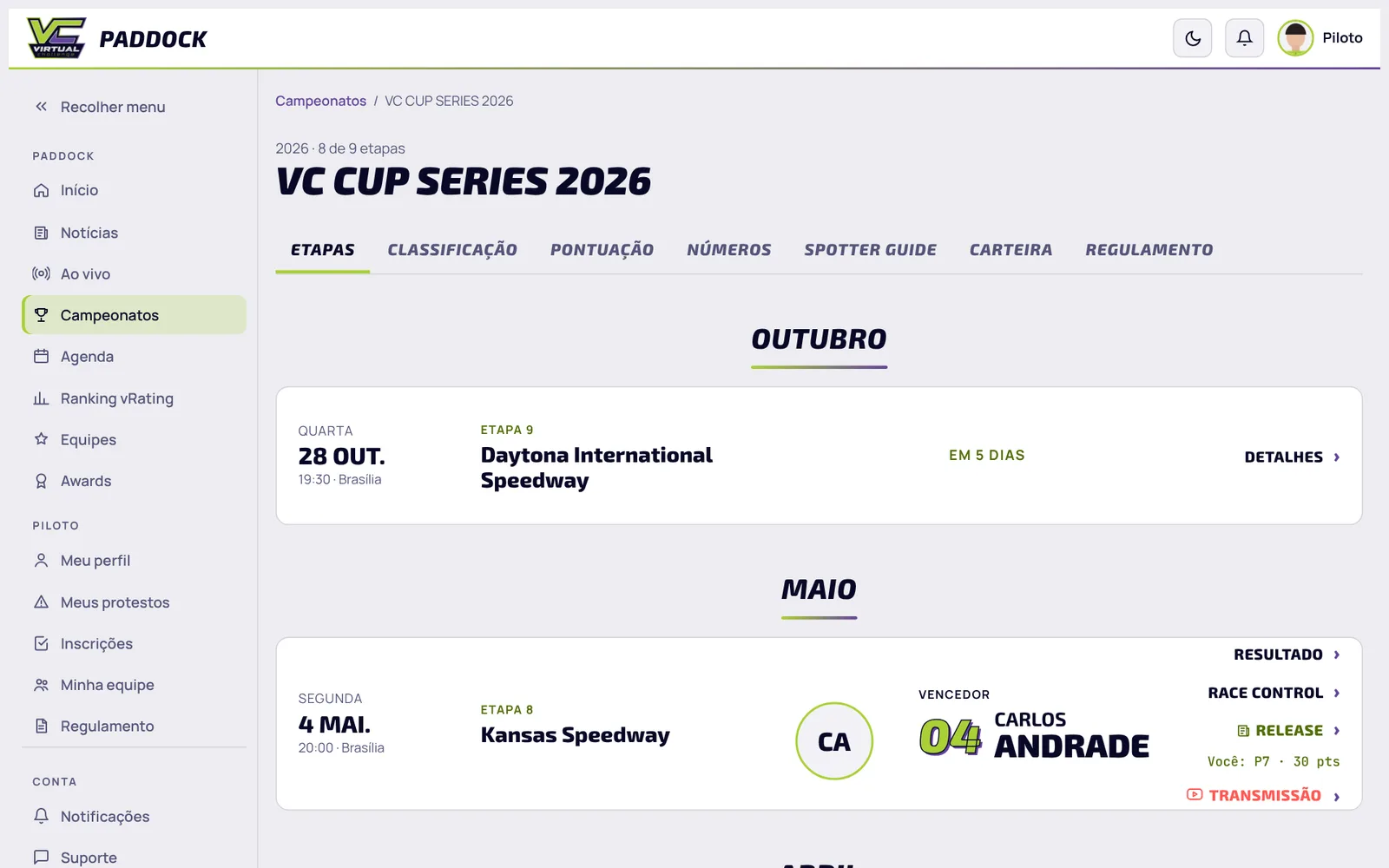
- Go to Campeonatos (Championships). The first tab shows championships in progress; Meus (Mine) has the ones you raced or registered for, and Encerrados (Finished) the completed ones, grouped by year and season. In championships you raced, the card shows your season position and highlights (wins, podiums, attendance, races with no incidents...).
- Open the championship and, in the Etapas (Rounds) tab, click the round (or Resultado).
- On the round page, the tabs at the top: Resultado (Driver of the Day and the full result: start, laps, laps led, best lap, incidents, points, bonuses and penalties), Race Control, Protestos, Clima (Weather) and Briefing.
On the round page, the Clima tab shows the simulated date in iRacing and the weather forecast for the scheduled server: weather type, sky, temperature, chance of rain and wind, with an hour-by-hour chart (simulated time at the track). During the race, the broadcast shows the real track conditions.
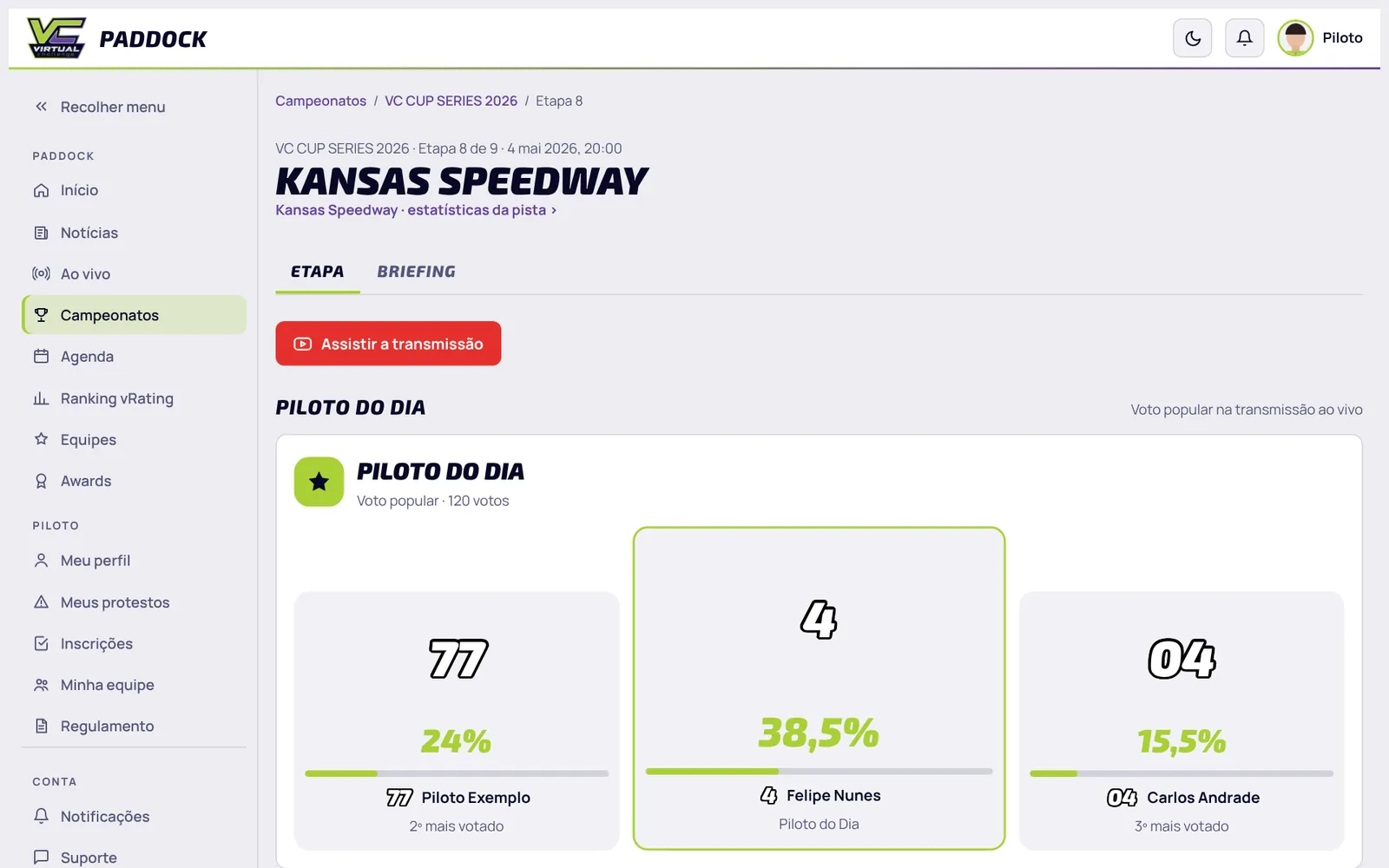
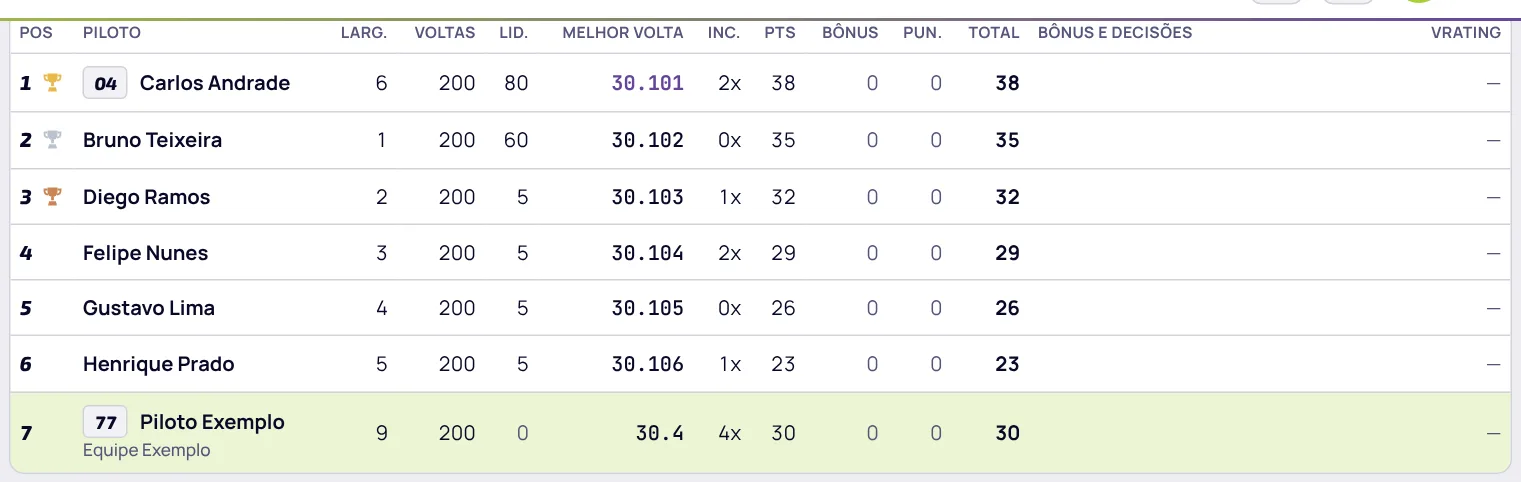
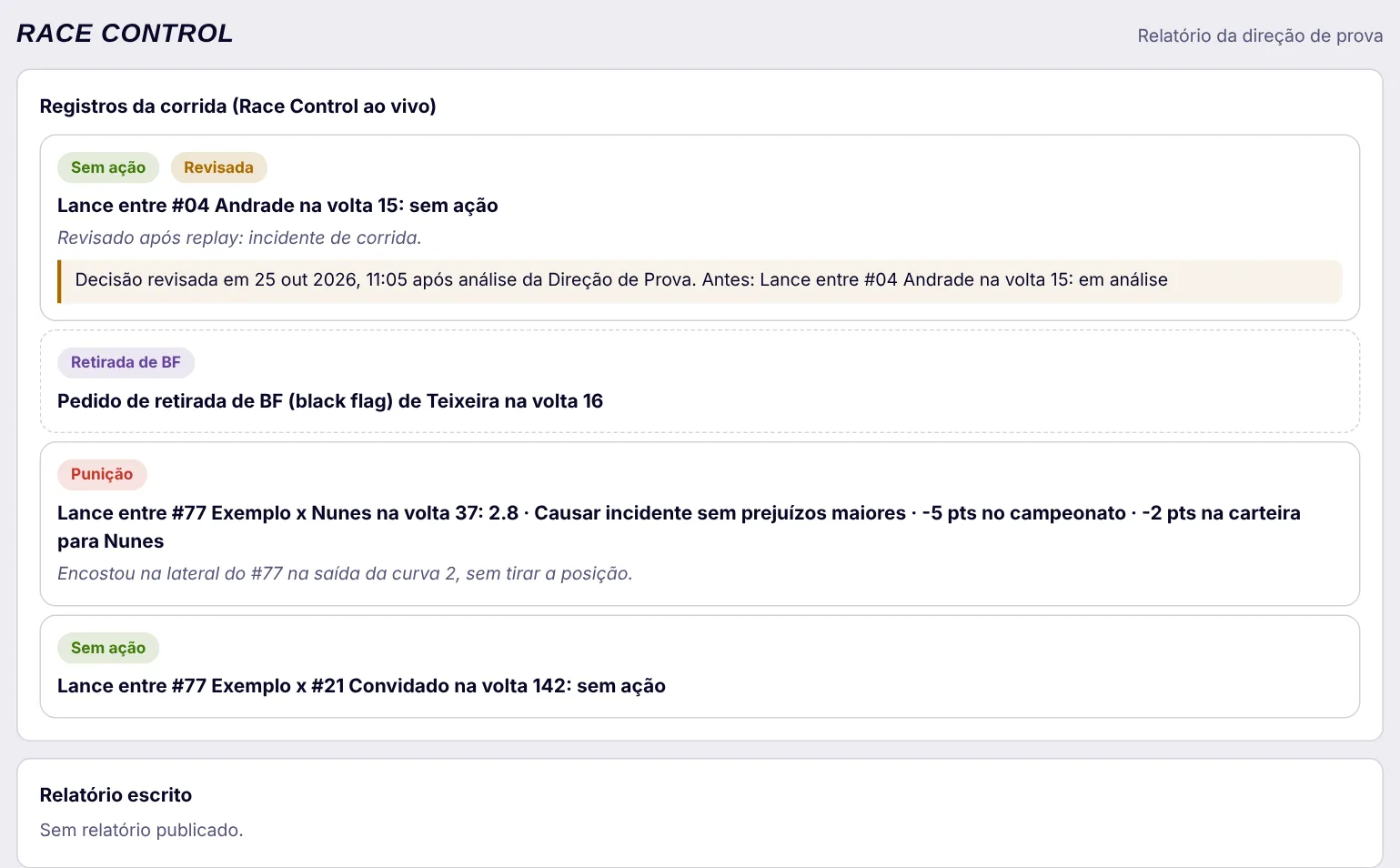
In the Race Control tab, each incident shows the cars involved and the lap, followed by the decision. If Race Control reviews a decision after the race, the incident is marked as revised, with the date and time and the previous decision. Black flag removal requests are also recorded there. Penalties decided in Race Control go into the result and your license points automatically when the official result is published. A drive-through (DT) does not take championship points, only license points. The round's protests are in the Protestos tab. The decisions of all closed protests (without the description, defenses and attachments) are in Meus protestos → Decisões da Direção (Race Control decisions).
7. Live broadcasts and news
Every race is broadcast live on VC's YouTube channel (in Portuguese). In the Paddock:
- On the round page, the watch the broadcast button opens the live stream (or the video, afterwards).
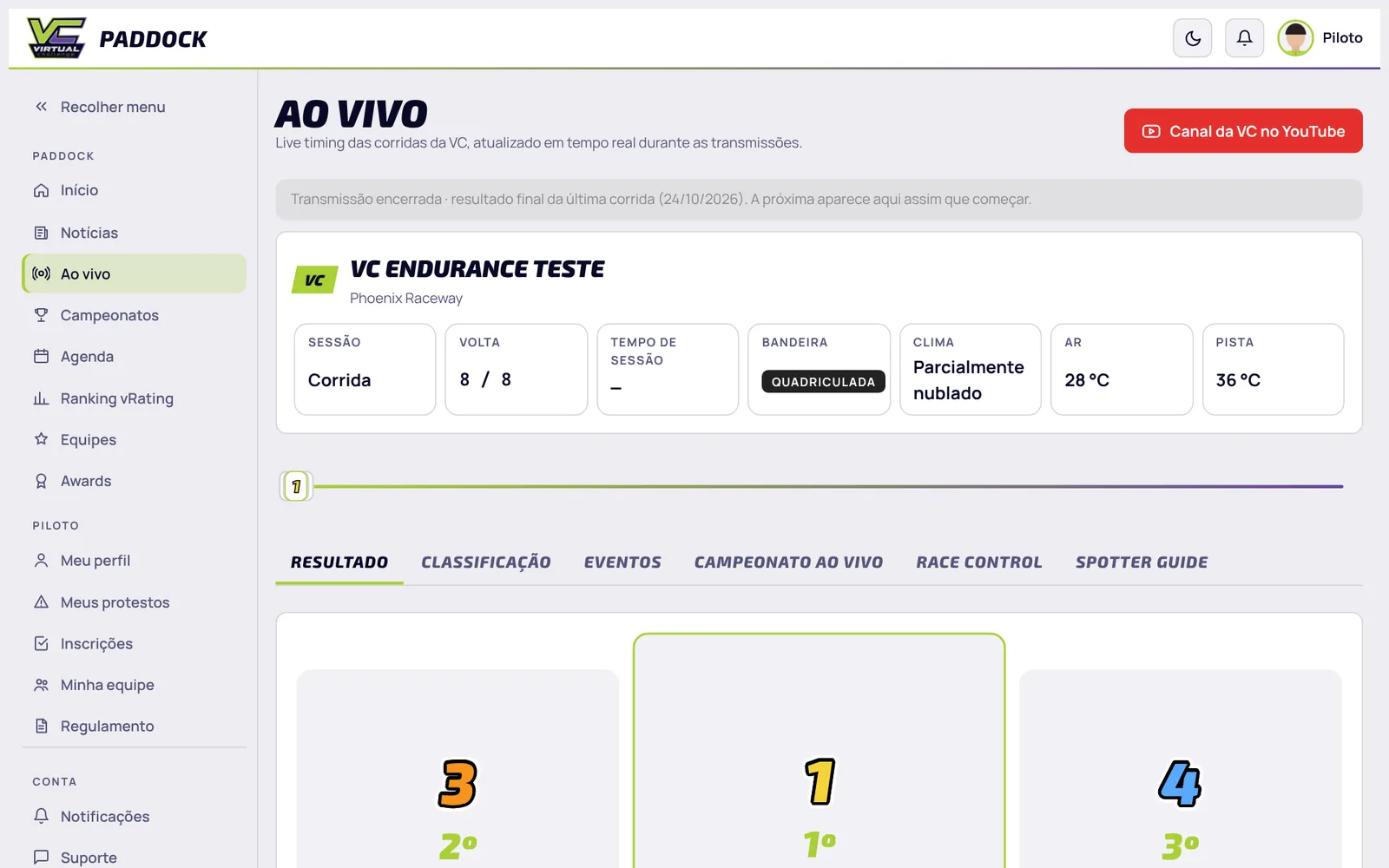
- The Ao vivo (Live) menu is the live timing: real-time standings, race events, live championship standings, Race Control, spotter guide and the Driver of the Day vote. With no race on air, it shows the final result of the last one.
- Round Fair Play: up to 48 hours after the result, the drivers who raced the round pick up to 5 drivers who raced well and clean (secret vote). With at least 5 voters, the most voted driver wins the Fair Play award, which appears on the round and counts toward their awards. The reminder to vote appears on the Home page.
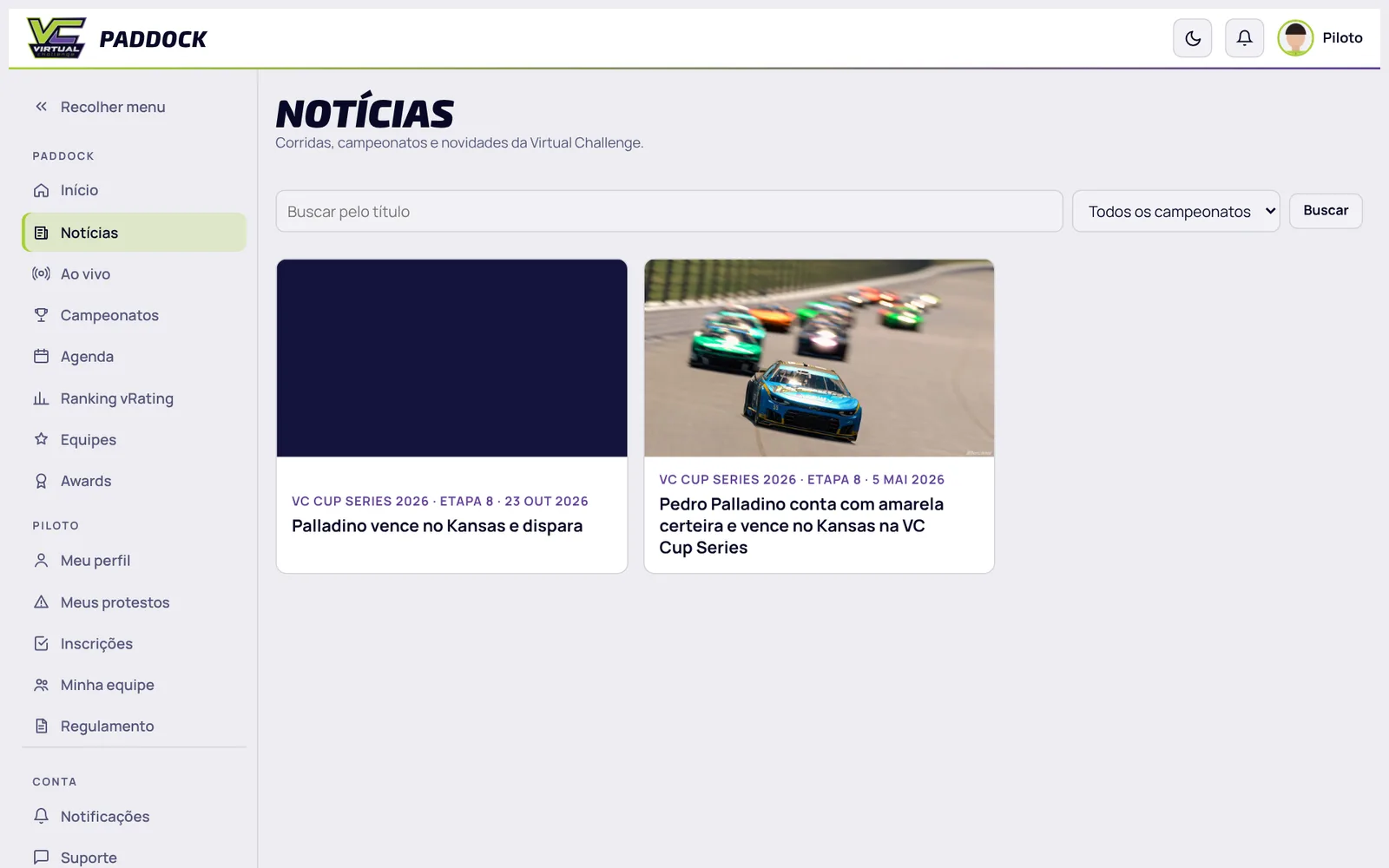
- The Notícias (News) menu has the stories of each round and league news, in Portuguese.
8. Round briefing
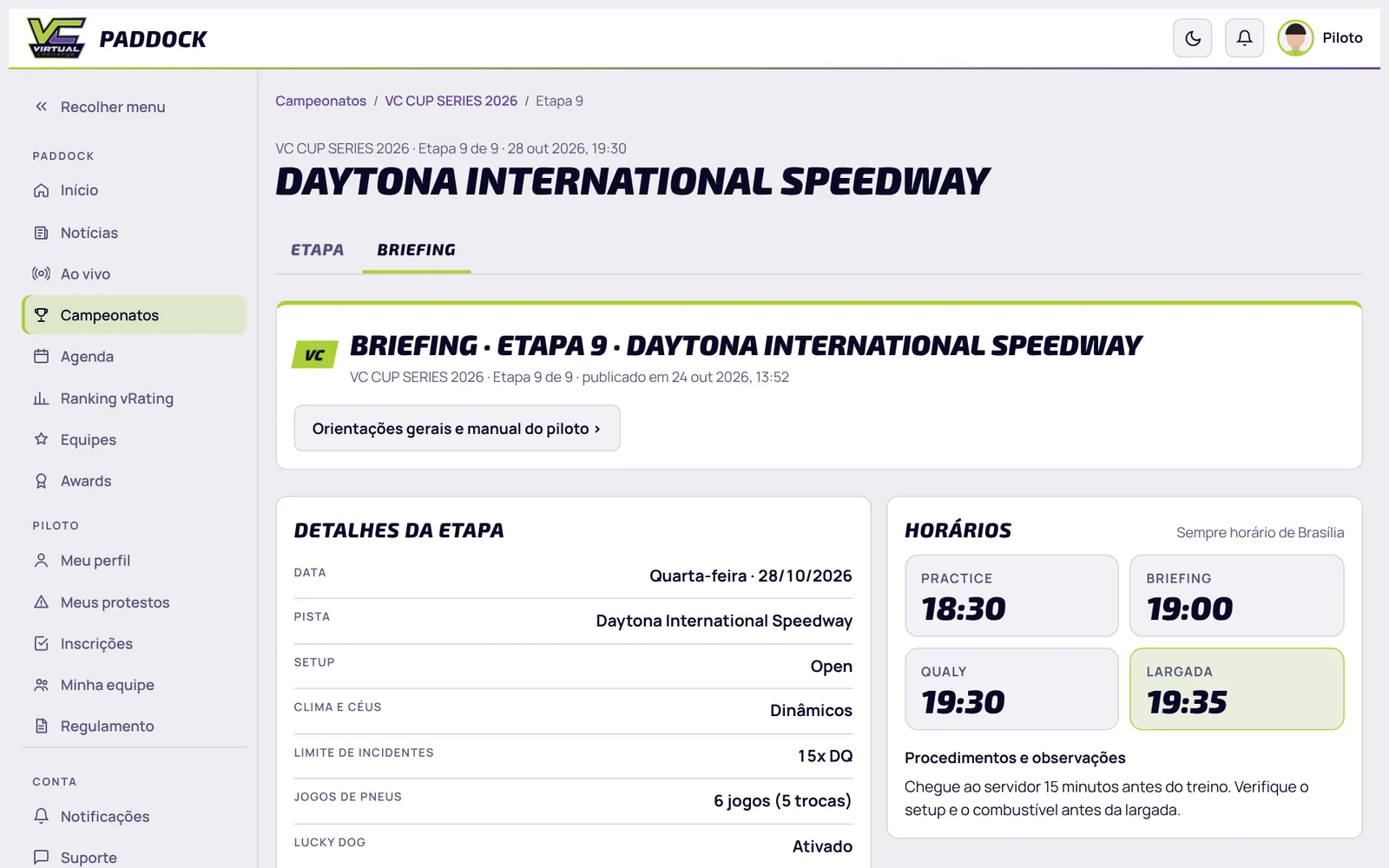
The briefing is published before each round, for the drivers registered in the championship. When it comes out, you are notified on the bell and by e-mail, and a notice appears on the Paddock Home (with more than one, each notice says which championship it is for). Once you open the briefing, the notice leaves the Home page; if the briefing is corrected and announced again, it comes back.
- Open the round and click the Briefing tab (or the notice on the bell).
- Check the details (setup, weather, incident limit, tires, lucky dog, restart zone, wave around, stages and virtual start time) and the schedule (always in Brasília time).
- At the end are the conduct lists: drivers suspended for this round, drivers on probation and those without the right to protest. If your name is on one of them, a warning appears at the top.
9. Standings and license points
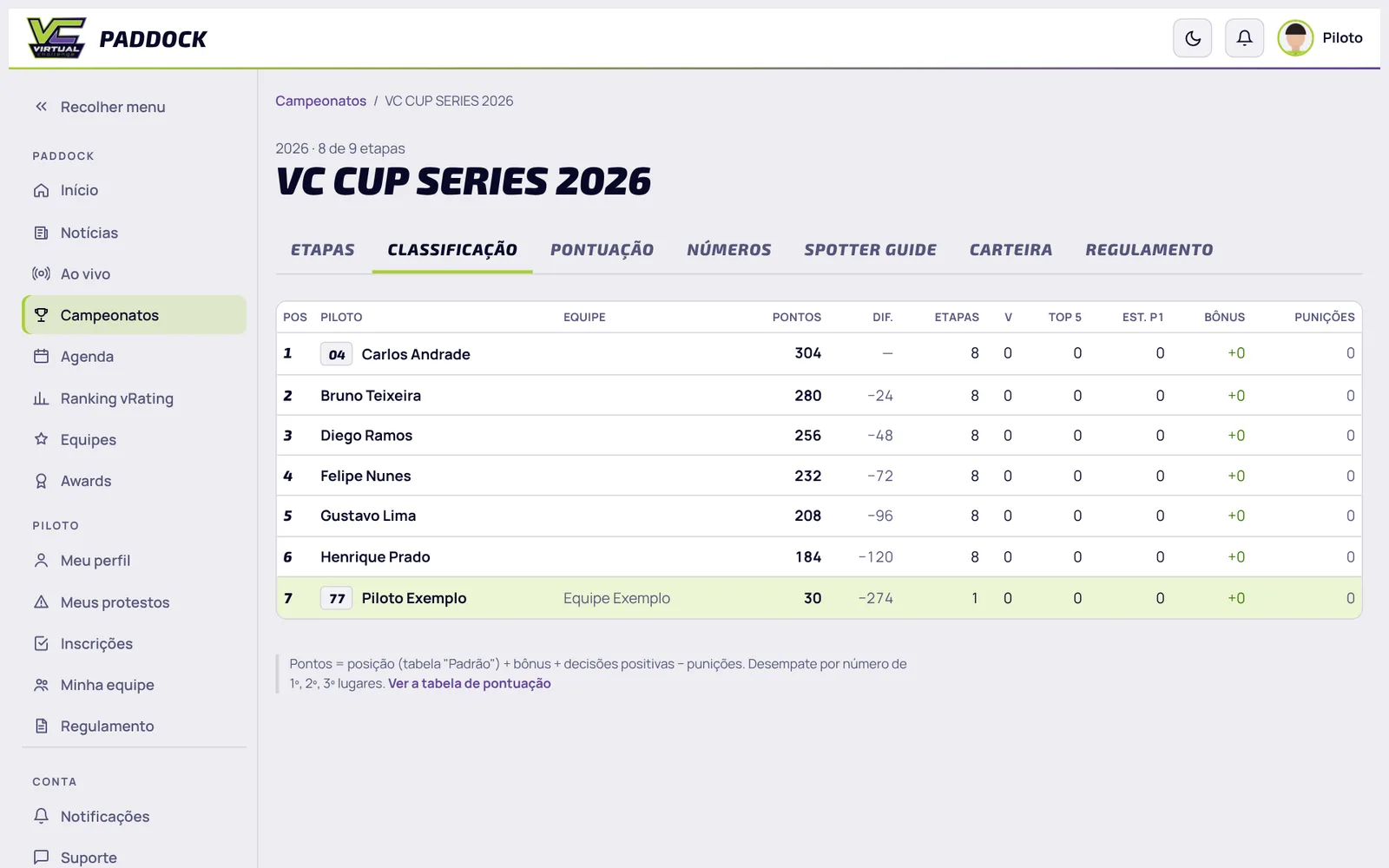
Open the championship and the Classificação (Standings) tab: position, points, gap, rounds, wins, top 5, top 10 and bonuses, with your row highlighted. The other tabs have the points system, the numbers, the spotter guide and the Carteira (license points and drivers on probation in the championship).
Series, X1 and cards
In the vRating ranking, when you are signed in, your row stays pinned at the top with your position in the open ranking (Overall, Oval, Road, Indy or Formula), besides your normal place in the list.
In vRating ranking → Séries are VC's series: each one gathers the editions of the same championship over the years. Each series card shows your participations. Opening a series you see the champions year by year and every driver's numbers across all editions. From there you can:
- compare yourself with another driver in X1, only in the races of that series;
- create the series champions card or your card with your numbers in the series (also in Profile → Career card, choosing the series).
10. VC Discord
Discord is where the league talks: quick announcements, round calls, server info and questions between drivers (in Portuguese).
- Click the button above (or open discord.gg/MTgeRcD) and accept the invite. Without a Discord account, it asks you to create one (it is free).
- Use the same name on Discord as on iRacing: that way the organization can find you easily.
11. Changing your number or team
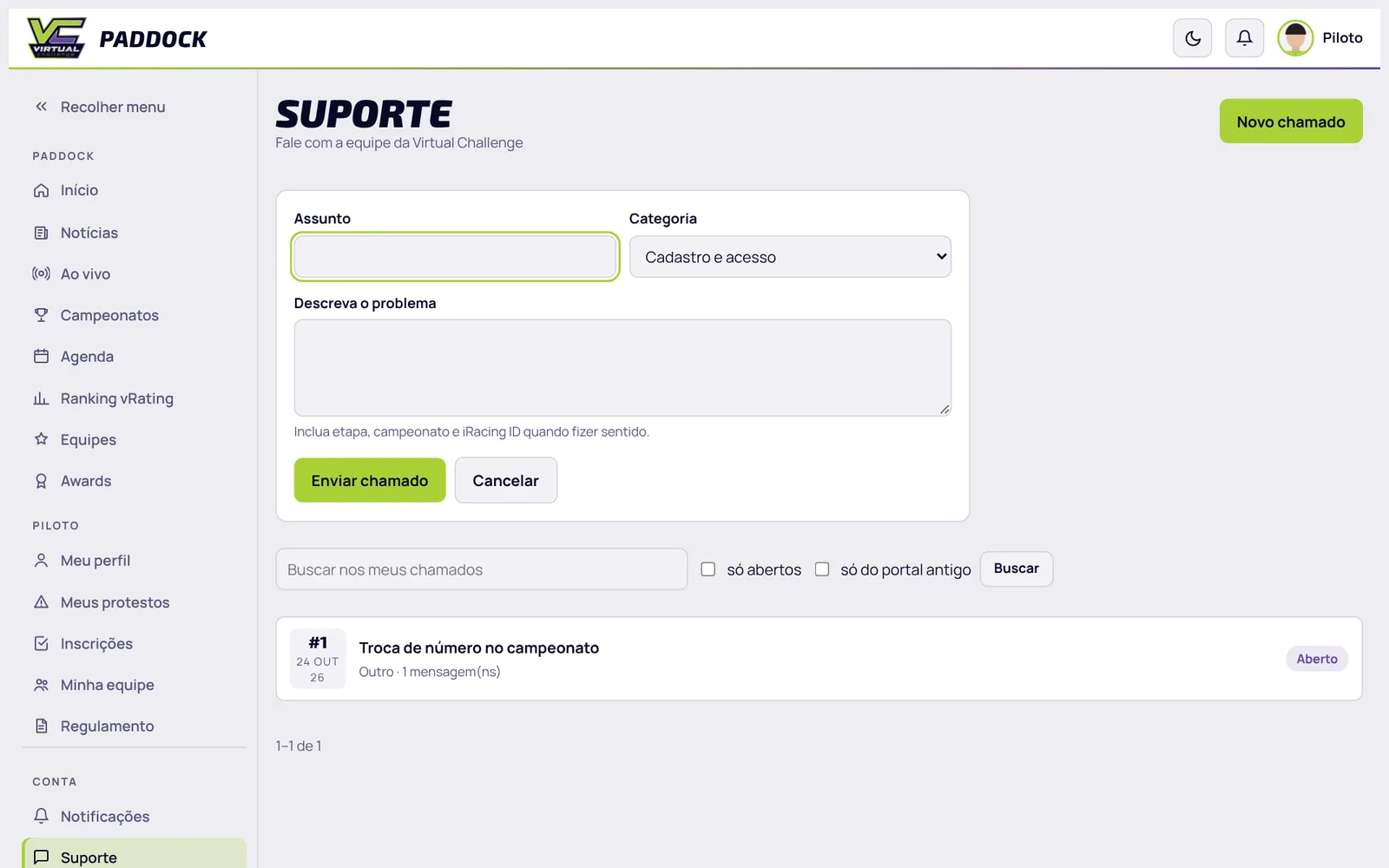
For now, number and team changes are requested through a Support ticket (the organization checks that the number is free and approves it). This will become automatic later.
- Go to Suporte and click Novo chamado (New ticket).
- In the subject, write the request (e.g. Number change in VC CUP SERIES 2026). In the category, choose Inscrição e pagamento (Registration and payment) for a number or Equipe (Team) for a team.
- Describe what you want to change (championship, current number or team and the new one) and send it. The reply arrives on the bell and by e-mail, and the conversation stays in the ticket.
12. Championship registration
The Inscrições (Registration) menu has the championships with pre-registration or registration open, the ones opening soon (tick Me avise quando abrir, notify me when it opens) and your registrations. Some championships have direct registration; the main ones have two stages: pre-registration and payment.
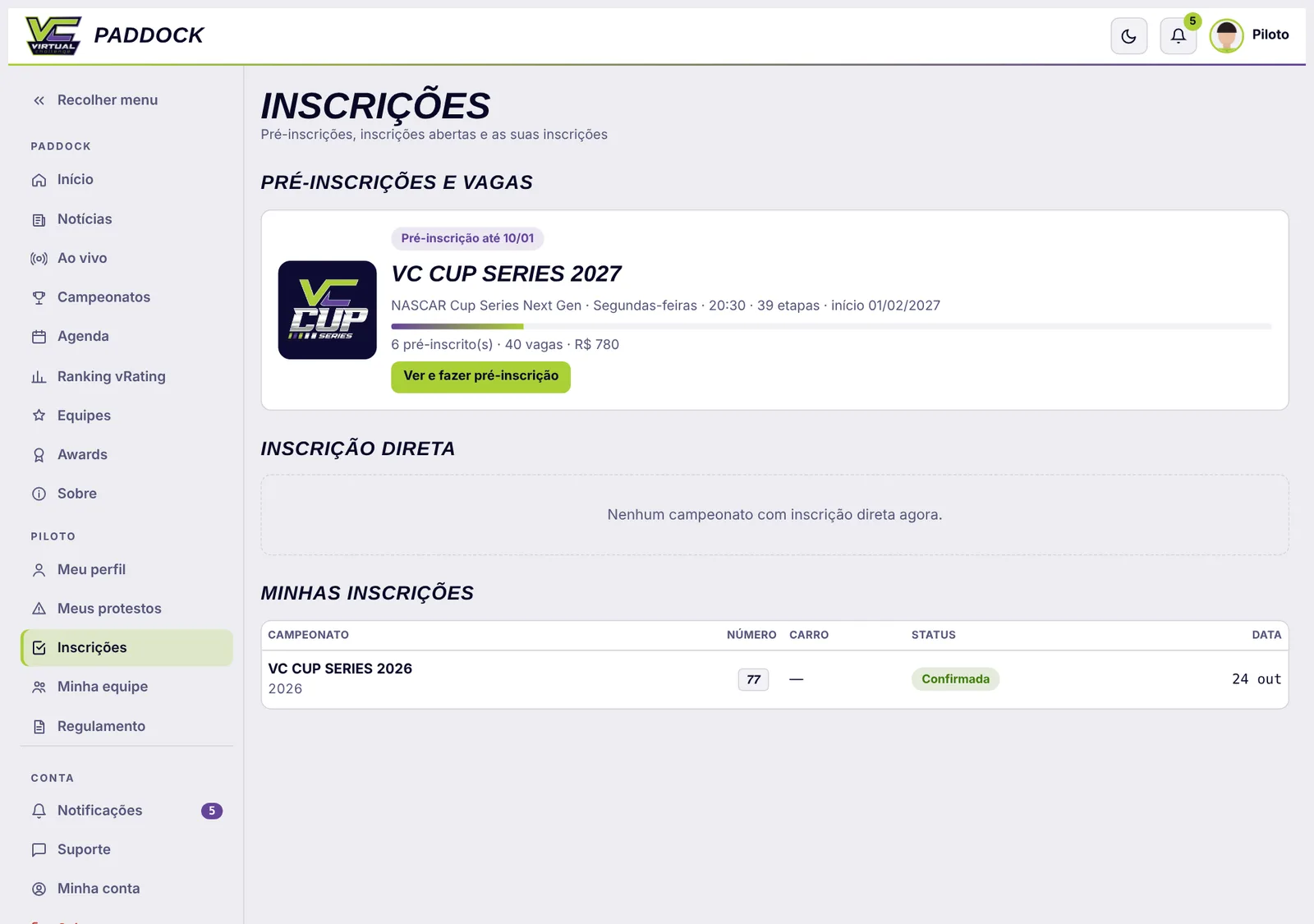
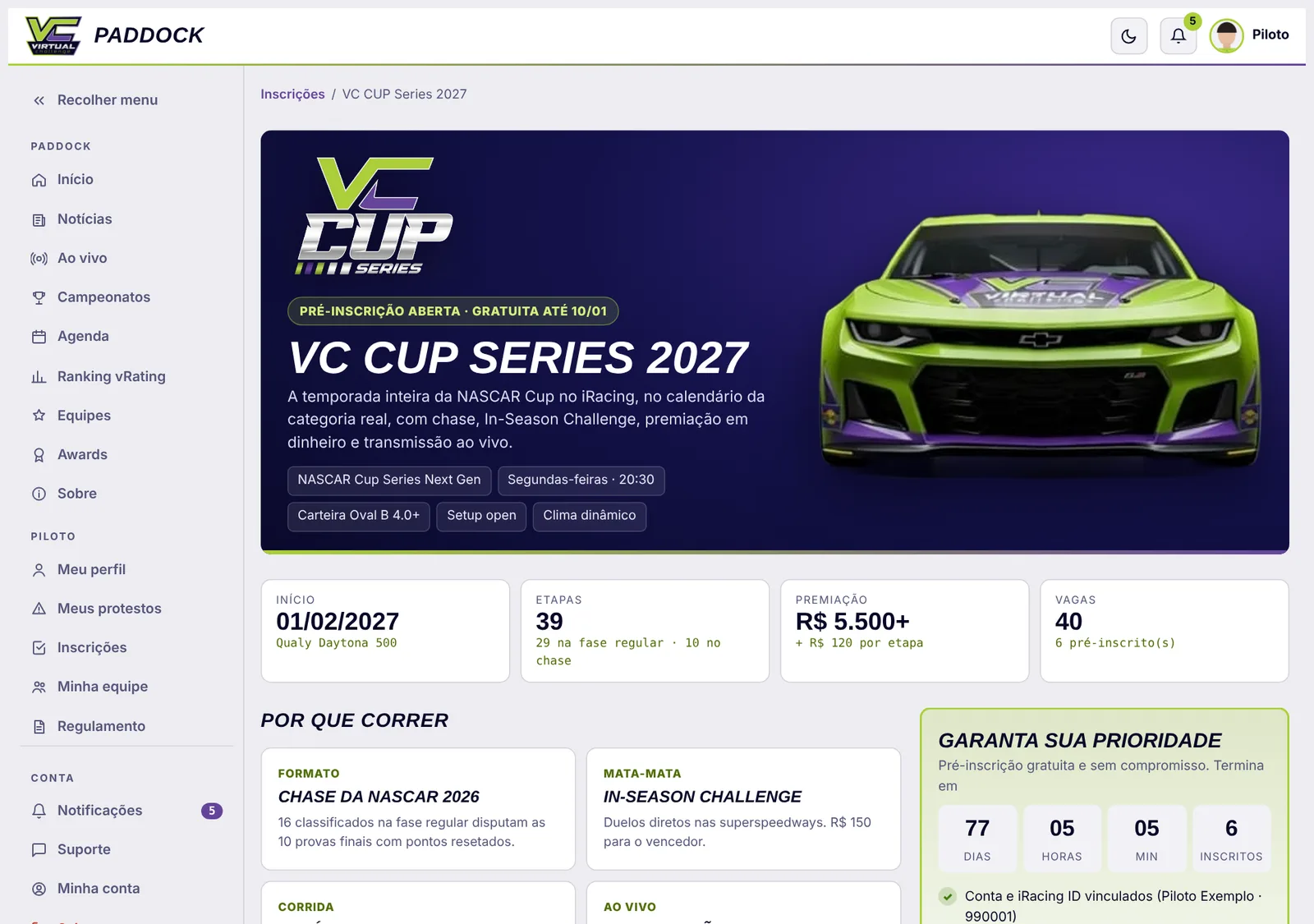
Open the championship to see everything before deciding: car, day and time, calendar, prizes, format, rules and who gets a spot (the criteria, in order).
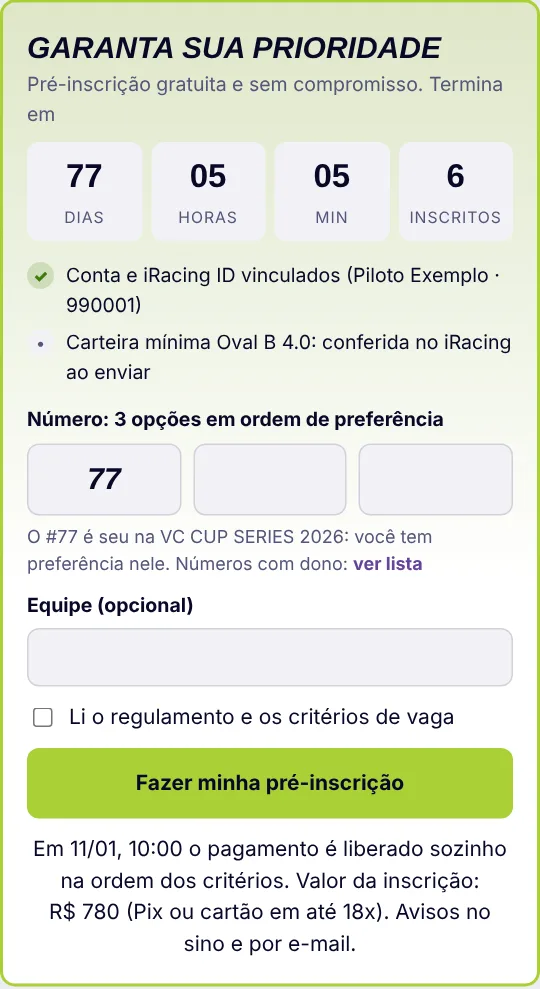
- Pre-registration (free). Choose 3 numbers in order of preference and, if you want, your team. If you raced the previous championship, your number is already filled in and is yours. If there is a minimum license, the Paddock checks it on iRacing right away.
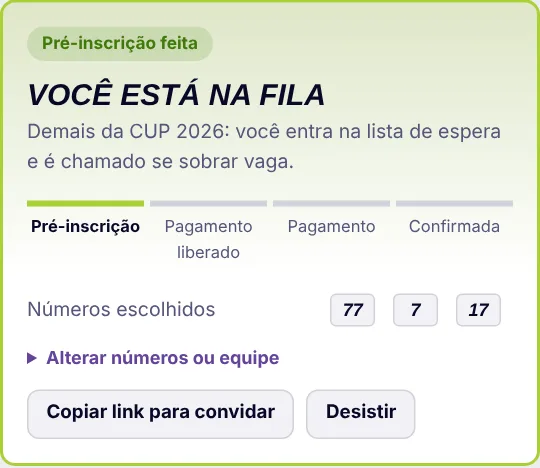
- After sending, you see which criterion you are in. You can change the numbers or the team until payment opens, or withdraw.
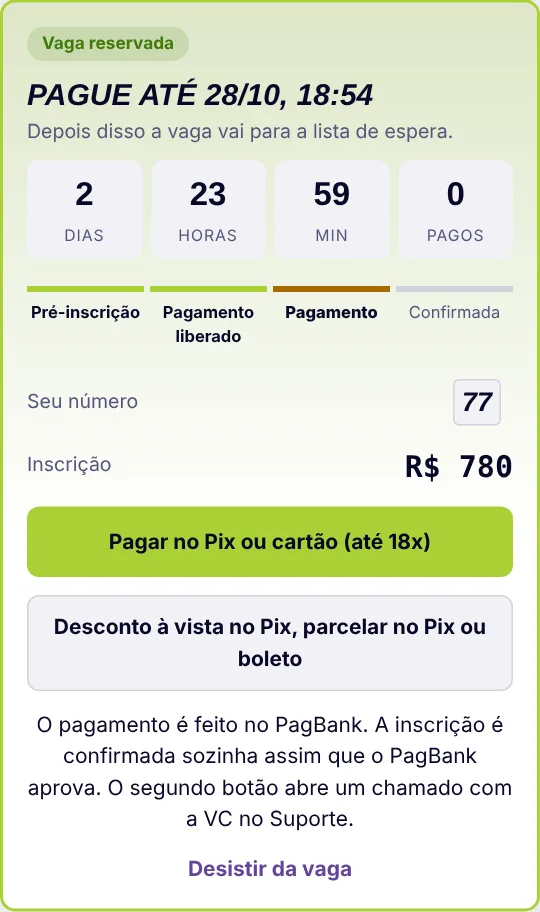
- Payment. On the set date, drivers within the available spots are notified on the bell and by e-mail. Pay before the deadline with the Pix or card button (PagBank); registration is confirmed automatically when the payment is approved. For other payment options, use the second button: it opens a ticket with VC.
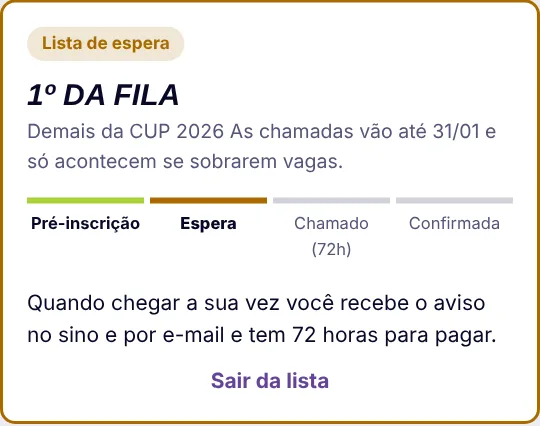
- Waiting list. Drivers who do not pay by the deadline go to the end of the list. While there are spots left, VC calls the next driver in line, who has 72 hours to pay.
13. About, release notes, terms and privacy
The Sobre (About) menu (Paddock group; on phones, under Mais) has links to this manual, the Terms and conditions and the Privacy policy (both in Portuguese, which is the version that applies), and the release notes: what changed in each Paddock version, in a few words. Your personal data and address can be deleted in Minha conta → Privacidade (LGPD).
14. Your cards on Instagram
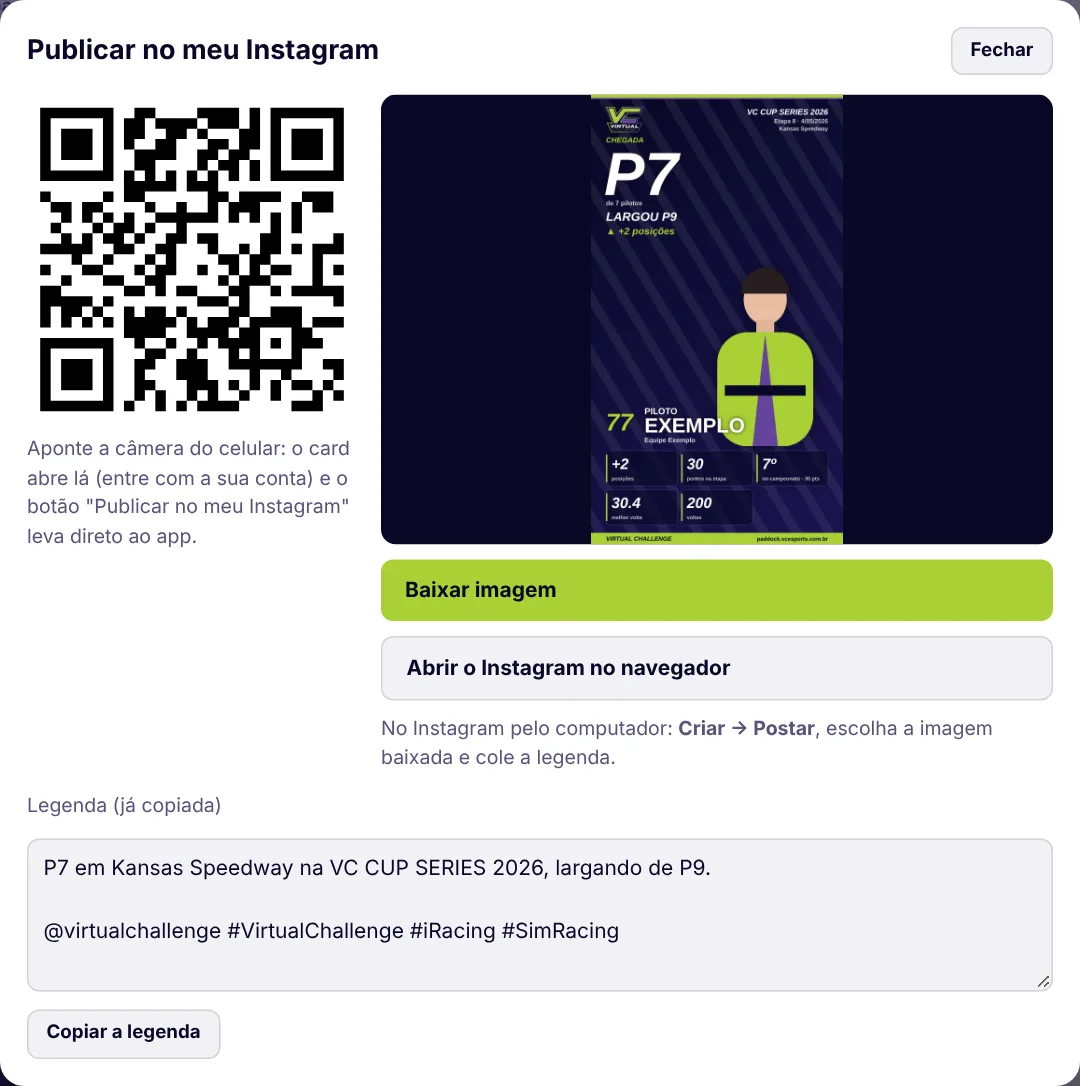
All Paddock cards (race, Raceday, career, champion, X1, birthday) and the spotter guide have a Publicar no meu Instagram (Post on my Instagram) button. It works with any Instagram account, with nothing to connect.

- On your phone: tap Publicar no meu Instagram. The Paddock copies a ready caption (with @virtualchallenge and the league hashtags) and opens sharing with the image. Choose Instagram and then Feed or Stories.
- On Instagram, tap the caption field and paste. Adjust the text if you want and post.
- On your computer: the button opens a window with a QR code. Point your phone camera at it, sign in and tap the button again there. Or click download image, open Instagram in the browser (Create → Post) and paste the caption.
This manual is updated with every important change in the VC Paddock. The Portuguese version is the reference. Any questions? Open a ticket in Support or talk to us on Discord.